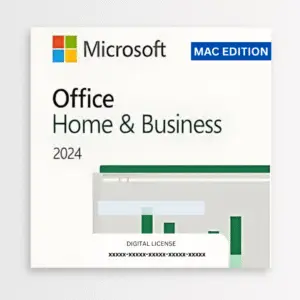
Office Home & Business 2024 is a one-time perpetual purchase — not a Microsoft 365 subscription. Once your licence key is activated at Microsoft’s redemption page, you own it permanently. This guide walks you through installation on Windows and Mac using Microsoft’s official method.
You’ll Need a Genuine Licence Key
Purchase before starting — installation requires a valid product key
Installation requires a valid 25-digit Office Home & Business 2024 product key. If you don’t have one yet, purchase yours before working through the steps below.
Genuine Office Home & Business 2024 — instant email delivery, lifetime activation, UK-based support.
Office Home & Business 2024 (Windows) → Office Home & Business 2024 (Mac) → Perpetual licence · One-time purchase · No subscriptionBefore starting either installation method, uninstall any existing Microsoft Office version or Microsoft 365 trial from your device. On Windows: Settings → Apps → Installed apps. On Mac: drag the Microsoft Office folder from Applications to Trash. Restart your device after uninstalling. Skipping this step is the most common cause of activation errors.
Installing on Windows
Using Microsoft’s official redemption and installation flow
Microsoft’s standard installation method for Office Home & Business 2024 on Windows uses the setup.office.com redemption portal. This associates your licence key with your Microsoft account and provides the correct perpetual installer.
-
1Restart your PC After uninstalling any previous Office version (see above), restart before continuing. This clears leftover services that can interfere with activation.
-
2Go to setup.office.com Open your browser and navigate to https://setup.office.com. This is Microsoft’s official product key redemption page. Sign in with your Microsoft account when prompted, or create one if you don’t have one.
-
3Enter your 25-digit product key Type or paste your Office Home & Business 2024 product key exactly as supplied. Microsoft will verify the key and associate the licence with your account.
-
4Download and run the installer After redemption, Microsoft will provide a download link for the correct Office installer. Download and run the file. Installation typically takes 5–15 minutes depending on your internet connection.
-
5Sign in to activate Once installation is complete, open any Office app — Word, Excel, or Outlook. Sign in using the same Microsoft account you used to redeem the key. Office will activate automatically.
Sign out of all Office applications, close them fully, then restart your PC and sign back in. This resolves most activation issues. If Office still doesn’t activate, sign in to account.microsoft.com/services and confirm that Office Home & Business 2024 appears under your purchased products.
Installing on Mac
Mac requires a separate Mac-specific licence key
Office Home & Business 2024 for Windows and for Mac are separate licences. A Windows product key cannot activate Office on a Mac and vice versa. If you need the Mac version, purchase the Office Home & Business 2024 Mac edition.
-
1Remove existing Office from your Mac Open Finder, go to Applications, and move any existing Microsoft Office applications to Trash. Empty the Trash, then restart your Mac before proceeding.
-
2Go to setup.office.com Open Safari or your preferred browser and navigate to https://setup.office.com. Sign in with your Microsoft account when prompted.
-
3Enter your Mac edition product key Enter the 25-digit product key for your Office Home & Business 2024 Mac edition. Microsoft will associate the licence with your account.
-
4Download and install Microsoft will provide the correct installer for Mac. Download and open the
.pkgfile and follow the on-screen instructions to complete installation. -
5Sign in to activate Open any Office app — Word, Excel, or Outlook. Sign in with the Microsoft account used to redeem the key. Office will activate automatically. You may be asked to accept the licence agreement on first launch.
Common Issues and How to Fix Them
The most frequently seen installation and activation errors
This usually means a Microsoft 365 installer was downloaded rather than the Office 2024 perpetual installer. Return to setup.office.com, sign in, and download the installer specifically listed under Office Home & Business 2024 in your account — not any Microsoft 365 option shown on the same page.
The most common cause is that the product key was not fully redeemed before installation began. Sign in to account.microsoft.com/services and check whether Office Home & Business 2024 appears under your products. If it doesn’t, return to setup.office.com and complete redemption first.
No. Office Home & Business 2024 and Microsoft 365 share the same underlying installation. The “About” screen in some Office apps may display Microsoft 365 branding even when you hold a valid perpetual licence. To confirm your actual licence type, open any Office app, go to File → Account, and check the product name listed there. You should see Office Home & Business 2024. The “Microsoft 365” label in the About screen is a Microsoft UI inconsistency, not an indication that you have a subscription.
For further installation help, Microsoft’s official support page covers all installation and reinstallation scenarios: Download, install, or reinstall Microsoft 365 or Office 2024 on a PC or Mac.
If you purchased your key from Software Supplies UK and need assistance, our support team is available seven days a week — contact us via live chat or email and we’ll help you through the process.
Purchase a genuine Office Home & Business 2024 licence key from Software Supplies UK. Instant email delivery, lifetime activation, and UK-based support seven days a week.
Office Home & Business 2024 (Windows) → Office Home & Business 2024 (Mac) → Perpetual licence · No subscription · Lifetime warrantyNeed a more comprehensive suite including Access? See Office Professional Plus 2024, which installs via a different method without requiring a personal Microsoft account.
Mac: open any Office app, go to Help → Check for Updates (this opens Microsoft AutoUpdate).
Office Home & Business 2024 (Windows)
Office Home & Business 2024 (Mac)

Gary Walsh is the Head of Tech Support at Software Supplies, with more than 20 years in the IT industry. Fully Microsoft-certified and experienced across the full business software stack — from Windows and Office to cloud infrastructure and device management — Gary delivers practical, no-nonsense advice that helps users and businesses get the most from their technology.