
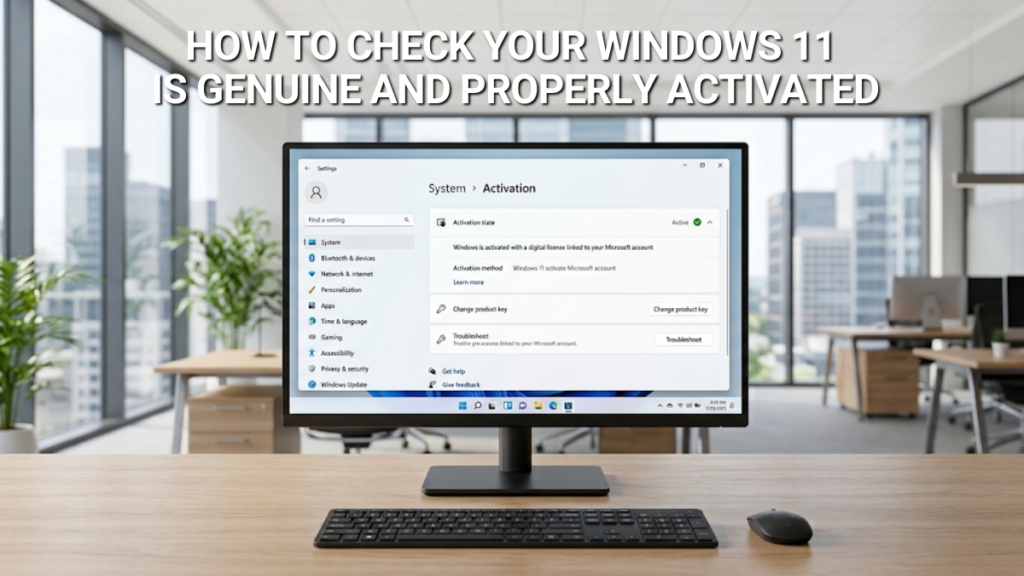
The two-minute check
- Select the Start button, then Settings → System → Activation.
- Read the Activation state field. It will match one of the four messages below.
| What the Activation page says | What it means |
|---|---|
| Windows is activated | Activated with a 25-character product key. Nothing more to do. |
| Windows is activated with a digital license | Activated without a key — usually a free upgrade from an older Windows version, or a licence tied to the device itself. Not yet linked to a Microsoft account. |
| Windows is activated with a digital license linked to your Microsoft account | The strongest state to be in. If this machine’s motherboard ever fails, this is what lets you reactivate on new hardware without buying anything. |
| Windows isn’t activated (or an error code) | Not activated yet — see the section below. |
Want the edition and build number in the same glance? Press Win + R, type winver, and press Enter.
“Activated” and “genuine” aren’t quite the same question
This is the part most guides skip, and it’s the actual answer to what most people mean when they search this. Microsoft’s own activation guidance draws a line between two separate checks. Activation pairs your product key or digital entitlement with your device’s hardware — it confirms the key fits this machine. On its own, Microsoft says this “does not evaluate the authenticity of the copy itself.” Validation is the separate, quieter check that your Windows licensing files haven’t been damaged, deleted or tampered with, and it runs in the background, mostly surfacing when it gates certain updates or downloads.
For almost everyone, the two move together: a key sold and installed properly activates cleanly and stays validated indefinitely. The distinction mostly matters if you want to understand why Windows is confident your copy is fine, rather than just seeing that it is — which is exactly why “it says activated” is a genuinely good answer to “is it genuine,” even though the two words aren’t strict synonyms.
There used to be a separate “genuine Windows” checking tool — Windows Genuine Advantage, retired years ago alongside Windows 7. Windows 11 folded that concept into activation itself. There’s no separate app or website to run a standalone genuine check against; the Activation page above is the check.
No desktop handy? The command-line check
If you support machines remotely, or just prefer not to click through Settings, two commands from an elevated Command Prompt or PowerShell window give you the same answer faster:
| Command | What it tells you |
|---|---|
slmgr /xpr |
Whether the licence is permanently activated or due to expire. For a retail or OEM key this should say permanent — an expiry date usually means a volume-licensed machine, not a personal one. |
slmgr /dlv |
The full detail: licence channel, partial key, and activation ID on one screen. Neither command strictly needs elevated privileges, but the output is easier to read from an admin window. |
If it says Windows isn’t activated
You’ll know quickly: a translucent “Activate Windows” watermark sits in the bottom-right corner of the desktop, personalisation options such as wallpaper and accent colour lock up, and Windows periodically prompts you to sort it out. Nothing else stops working — files, apps and Windows Update all carry on as normal.
This article is about checking your status, not fixing a broken one, so we’ll keep this short. If you have a specific error code on screen, our guide to Windows 11 activation error codes covers what each one means and the order to try fixes in — most are environmental (a wrong clock, a blocked connection) rather than anything wrong with the key itself.
If you activated with a Software Supplies key and you’re seeing “not activated” or an error, get in touch before doing anything else. UK-based support can look at your specific case directly — no need to work through a general troubleshooting article first.
Bought your key from Software Supplies?
If the Activation page shows any of the three activated states above, that’s the confirmation — nothing further to check or prove. Every Windows 11 key we sell is a genuine Microsoft licence, delivered instantly by email, and activated the same way as any key bought directly from Microsoft: enter it under Settings → System → Activation → Change product key, or it activates automatically if already installed on the device.
The keys themselves are surplus, reassigned perpetual licences rather than newly issued ones, which is why the price sits well below Microsoft’s own list price — not because anything about the licence is different once it activates. If that gap is what brought you here, our guide to how the reselling market works and what UK law says about it is worth a read.
FAQ
For practical purposes, yes. Activation and genuine validation are technically separate checks, but they move together for almost every installation. If Windows says activated, treat that as your answer.
Yes. The Activation page and both slmgr commands read the licence state stored locally on the device, so they work offline. You only need a connection if the state needs to change — for example, activating a new key.
No. A digital licence is simply activation without a 25-character key — common after a free upgrade from an earlier Windows version, or on a device where the licence is tied to the hardware itself. It’s just as genuine as a key-based activation.
The check is identical — Windows doesn’t record or display where a key came from, only whether it activated successfully. If it shows one of the activated states, it’s passed the same validation as any other copy.
Not on its own — winver confirms your edition and build number, not your activation state. Use it alongside the Activation page, not instead of it.
It’s unusual, but a significant hardware change — replacing a motherboard is the classic case — can knock activation loose even though nothing about the key itself has changed. That’s a separate scenario with its own fix, not a sign the key was ever wrong.

Gary Walsh is the Head of Tech Support at Software Supplies, with more than 20 years in the IT industry. Fully Microsoft-certified and experienced across the full business software stack — from Windows and Office to cloud infrastructure and device management — Gary delivers practical, no-nonsense advice that helps users and businesses get the most from their technology.






