
Can Windows 11 Home use Remote Desktop?
Remote Desktop has two sides: the device you’re sitting at (the client) and the PC you’re connecting into (the host). Windows 11 Home can be the client. It can never be the host, and there’s no setting, workaround or edition update that changes that.
Microsoft’s own support guidance is direct about it: the PC you’re connecting to “must be running Windows Pro edition of Windows”, while the device you connect from “can be running any edition of Windows (Pro or Home), or even a different operating system altogether.” Microsoft Learn puts the same rule the other way round — you can connect to “Professional and Enterprise SKUs of Windows”, but “you can’t connect to computers running a Home edition.”
| Windows 11 Home | Windows 11 Pro | |
|---|---|---|
| Can be the PC you connect to (host) | No | Yes |
| Can be the device you connect from (client) | Yes | Yes |
| Remote Desktop Connection app included | Yes | Yes |
| Settings → System → Remote Desktop toggle available | No | Yes |
In practice: if you’re on Home and want to reach your own PC from elsewhere, the PC you’re reaching has to be upgraded to Pro first. If you just want to reach a different Pro or Enterprise machine — a work PC, say — Home does that today with no changes needed.
What you need before you start
Before you touch any settings, make sure you have:
- The PC you want to reach running Windows 11 Pro (check under Settings → System → About → Windows specifications)
- An administrator account on that PC, or an account you’ll add to the allowed list
- Both devices powered on and connected to a network — the host can’t be asleep when you try to connect
- A few minutes to note down the PC name, which you’ll need on the connecting device
How to turn on Remote Desktop on Windows 11 Pro
Do this on the PC you want to be able to reach remotely — the host.
- Go to Settings → System → About and confirm Edition shows Windows 11 Pro.
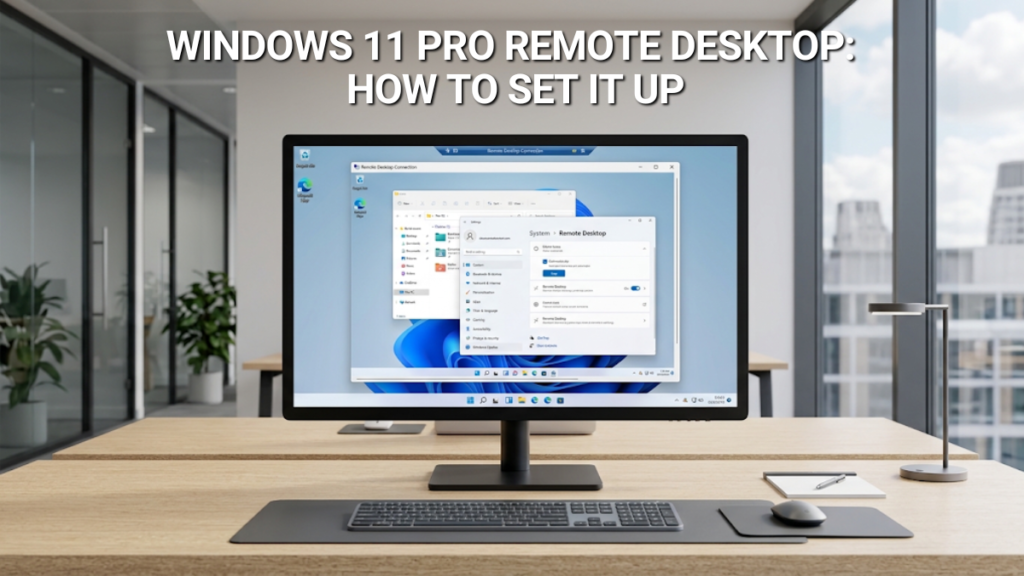
- Go to Settings → System → Remote Desktop.
- Turn the Remote Desktop switch to On, then select Confirm.
- Make a note of the PC name shown on this page — you’ll need it to connect later.
- If anyone other than an administrator needs access, select Remote Desktop users (older builds label this “Select users that can remotely access this PC”) and add their account. Administrators are added automatically.
- Leave Make my PC discoverable switched on if you’ll mostly be connecting from the same home or office network.
Windows Firewall normally opens the right exception automatically the moment you enable Remote Desktop. If a connection fails later and everything above looks correct, that’s the first place to check — Windows Defender Firewall → Allowed apps → confirm Remote Desktop is ticked for your network type.
Home can connect out to other PCs, but it can never be the one someone connects into — that needs Pro. A genuine Windows 11 Pro key upgrades the licence in minutes, no reinstall required.
Network Level Authentication: leave it on
When you enable Remote Desktop through Settings, Windows also switches on Network Level Authentication (NLA) by default — the option that reads “Allow connections only from devices running Remote Desktop with Network Level Authentication (recommended).”
It authenticates you before a full remote session starts, rather than after. That means an attacker without valid credentials never gets as far as seeing a logon screen at all — the connection is refused before any session resources are spent on it.
Leave this setting as it is. The only reason to turn it off is a specific compatibility problem with an older client that doesn’t support it, and if you hit that, it’s worth checking whether that client can be updated instead before switching NLA off.
Connecting to your Pro PC
From another Windows PC
Type Remote Desktop Connection into the taskbar search box and open it. Enter the PC name you noted earlier, select Connect, then sign in with an account that has access on the host.
From a Mac, iPhone or iPad
Microsoft’s dedicated Remote Desktop app for Windows was retired on 27 May 2025. On Apple devices, install Windows App from the Microsoft Store or Apple App Store instead, add the host’s PC name, and select it to connect.
From Android
Install the Remote Desktop app from Google Play, add the PC name, select the PC, and wait for the connection to complete.
The PC name alone is enough while both devices are on the same network. Reaching your PC from outside that network — from a café, from work, from another country — needs either a way into that network first, or a way to reach the PC’s address directly. The next section covers which of those is the sensible choice.
Is Remote Desktop safe to use?
Remote Desktop itself is encrypted, and with Network Level Authentication on, it checks who you are before a session opens. It isn’t an inherently weak protocol. The risk that gets it a bad reputation is specific: a PC with its Remote Desktop port opened straight to the internet, protected by nothing more than a password.
That specific setup — known as port forwarding a router’s port 3389 directly onto a home PC — is genuinely common, and genuinely risky. Independent research (Coalition’s Cyber Threat Index 2025) puts the number of internet-exposed Remote Desktop systems at more than five million, and it’s one of the most frequently cited entry points in ransomware incidents for exactly that reason: it’s easy for automated scanning tools to find, and once found, it’s only as strong as whichever password is protecting it.
None of that is a reason to avoid Remote Desktop. It’s a reason to set it up the safer way from the start:
- Same network only — if you only ever need to reach the PC from inside your own home or office, you’re already done. Nothing needs to be exposed to the internet at all.
- Connect through a VPN — if you do need access from elsewhere, connect to your home or office network through a VPN first, then run Remote Desktop over that connection. The RDP traffic itself never touches the open internet.
- Avoid forwarding port 3389 directly, unless there’s a specific reason to and you’ve added protection beyond the default — a strong, unique password on every account with access, and account lockout after repeated failed attempts.
None of this needs a step-by-step port-forwarding guide, and we’re not going to give you one — the whole point of the advice above is to avoid needing it in the first place.
Remote Desktop vs Quick Assist vs Windows 365
Three different Microsoft tools solve three different problems, and it’s easy to reach for the wrong one.
Quick Assist is built into every edition of Windows, Home included. It’s for a one-off help session — someone shares their screen with a helper, with their consent, for as long as the problem takes to fix. It isn’t persistent access, and it isn’t what you want if you need to reach the same PC regularly.
Windows 365 gives you a persistent desktop that lives in the cloud rather than on a specific physical PC, reachable from any device on a recurring subscription. It solves a genuinely different problem — a desktop that exists independently of any one machine being switched on.
Remote Desktop on Windows 11 Pro solves the problem most people searching for this actually have: reaching a specific PC they already own, whenever it’s switched on. Once you own the Pro licence, hosting is included — there’s nothing further to subscribe to.
Fixing common Remote Desktop problems
| Symptom | Likely cause |
|---|---|
| No “Remote Desktop” option under Settings → System | The PC is running Windows 11 Home, not Pro |
| “This computer can’t connect to the remote computer” | Remote Desktop isn’t enabled on the host, or the host is switched off or asleep |
| Works on the home network, not from outside it | No VPN or port-forwarding route configured — see the safety section above for the recommended option |
| An authentication error appears when connecting | A Network Level Authentication mismatch between client and host, or an expired or locked account |
None of this is an activation or licensing problem — it’s a configuration one. If you’ve bought a Windows 11 Pro key from us and something here still doesn’t add up once you’ve checked the edition and the Remote Desktop toggle, get in touch and we’ll work through it with you.
More Pro features
Remote Desktop is one of several things a Windows 11 Pro licence adds over Home. See also: BitLocker drive encryption, Group Policy Editor, Windows Sandbox, Hyper-V, or see the full Home vs Pro comparison.
FAQ
Windows 11 Home can be used to connect out to another PC, but it can never be the PC someone connects into. Hosting a Remote Desktop session needs Windows 11 Pro, Enterprise or Education.
Go to Settings → System → Remote Desktop and turn the switch on. Note the PC name shown there, then use it to connect from another device.
Yes. Install Windows App from the Microsoft Store or Apple App Store, add the PC name of your Windows 11 Pro machine, and connect. The older standalone Remote Desktop app for Apple devices was retired in 2025.
Remote Desktop itself is encrypted and, with Network Level Authentication on, verifies you before opening a session. The risk comes from exposing it directly to the internet by forwarding port 3389 with no other protection — connecting through a VPN instead avoids that risk entirely.
Quick Assist is a one-off, consent-based screen-sharing session for getting or giving help, and it works on any edition of Windows. Remote Desktop gives you full, repeatable access to a PC’s desktop, but only if that PC is running Windows 11 Pro or above.
Not strictly, but it’s the safer route. Without a VPN, reaching your PC from elsewhere usually means forwarding a port directly to the internet, which is the setup most Remote Desktop attacks target.
Usually one of three things: the host PC is running Home rather than Pro, Remote Desktop isn’t switched on, or the host is asleep or switched off. Check the edition first — it’s the most common cause.
It’s included. Once you own a genuine Windows 11 Pro licence, Remote Desktop hosting is switched on from Settings at no extra cost — there’s no separate subscription involved.
Reaching your own PC from anywhere else is one of the plainest reasons people move from Home to Pro — not a business feature you might never use, but a genuine gap that only shows up the day you actually need it. A Windows 11 Pro key is a one-time purchase that switches it on for good.

Gary Walsh is the Head of Tech Support at Software Supplies, with more than 20 years in the IT industry. Fully Microsoft-certified and experienced across the full business software stack — from Windows and Office to cloud infrastructure and device management — Gary delivers practical, no-nonsense advice that helps users and businesses get the most from their technology.






