
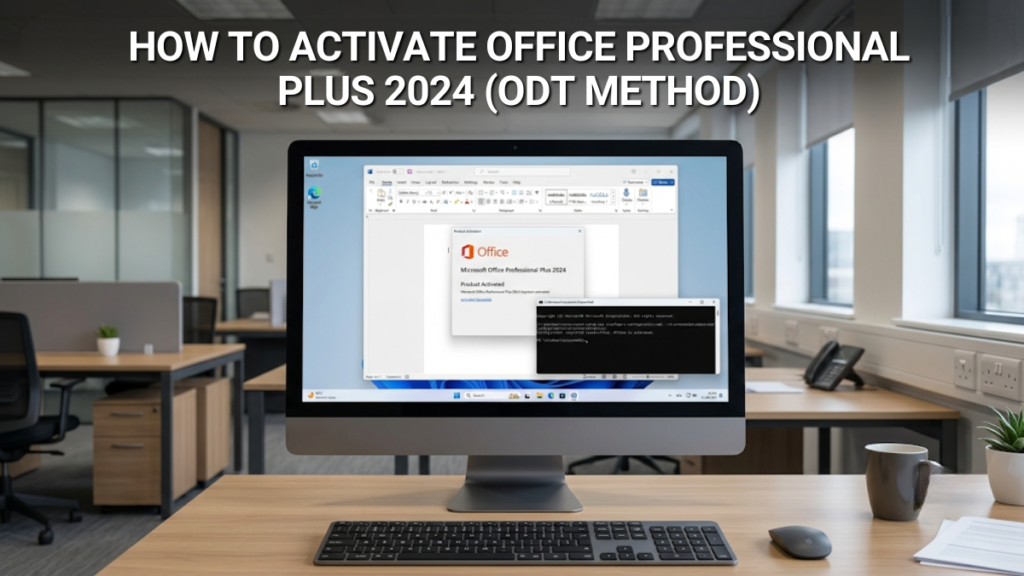
Office Professional Plus 2024 doesn’t activate through office.com/setup — and that catches people out. It installs through Microsoft’s own Office Deployment Tool and activates directly with your product key, no Microsoft account required. This guide walks through the whole process on Windows, including a paste-ready configuration file.
Microsoft Office Professional Plus 2024 — £—
Word, Excel, PowerPoint, Outlook, Access and OneNote on one PC. Genuine key delivered by email within minutes — activate in under half an hour with the steps below.
Buy Office Professional Plus 2024 Genuine Microsoft key · Instant delivery · UK support 7 days a weekThis guide covers Office Professional Plus 2024, which installs via the Office Deployment Tool and activates with a product key. If you have Office Home & Business 2024, your licence works differently — it’s redeemed against a Microsoft account at office.com/setup. Follow our Office Home & Business 2024 activation guide instead. Following the wrong guide is the single most common cause of activation errors we see in support.
Why Pro Plus 2024 Activates Differently
Office Home & Business 2024 is a consumer retail product: you redeem the key against a Microsoft account, and the account holds the licence. Office Professional Plus 2024 takes a different route. The software installs directly from Microsoft’s content delivery network using the Office Deployment Tool (ODT) — a free, official Microsoft utility — and your product key is applied straight to the installation itself.
That difference brings three practical advantages. There’s no Microsoft account involved — nothing to sign into, no account to lose access to years later. Your licence and your documents stay on your machine, which matters for privacy-conscious users and regulated industries. And because the whole install is driven by one small configuration file, reinstalling later is trivial — keep the file, and a future reinstall is one command.
None of this is a workaround. The ODT is the same tool Microsoft’s documentation prescribes for deploying Office LTSC 2024, and it’s how IT departments roll Office out across entire organisations. You’re just doing it for one PC.
Before You Start
- Your 25-character product key — delivered by email straight after purchase, in the format XXXXX-XXXXX-XXXXX-XXXXX-XXXXX.
- Windows 10 or Windows 11 with an administrator account — the install commands need elevated permissions.
- An internet connection and roughly 5 GB of free disk space — the Office download is 3–4 GB and installs to your system drive.
- A machine with no other Office installation on it — see the warning below before you begin.
Office Professional Plus 2024 and Microsoft 365 cannot coexist on the same machine — this includes the Microsoft 365 trial preinstalled on most new PCs. Uninstall any existing Office via Settings → Apps → Installed apps before you begin. If the uninstall fails or leaves remnants behind, run Microsoft’s free Support and Recovery Assistant (SaRA), available from Microsoft’s website, for a clean removal. Skipping this step is the most common cause of installation and activation conflicts.
Step 1 — Download the Office Deployment Tool
- Create a working folder. Make a new folder at C:\ODT — you’ll extract the tool here and run everything from this location.
- Download the ODT from Microsoft. Go to the official Office Deployment Tool page on the Microsoft Download Centre and click Download. Always use the latest version.
- Extract the files. Run the downloaded officedeploymenttool.exe, accept the licence terms, and choose C:\ODT as the extraction folder. You’ll end up with setup.exe and a few sample configuration files.
Step 2 — Create Your configuration.xml
The configuration file tells setup.exe exactly what to install: which product, which language, 32-bit or 64-bit, and — crucially — your product key. Open Notepad, paste the block below, and replace the placeholder with the 25-character key from your order email.
<Configuration>
  <Add OfficeClientEdition="64" Channel="PerpetualVL2024">
    <Product ID="ProPlus2024Volume" PIDKEY="XXXXX-XXXXX-XXXXX-XXXXX-XXXXX">
      <Language ID="en-gb" />
    </Product>
  </Add>
  <RemoveMSI />
  <Display Level="Full" AcceptEULA="TRUE" />
</Configuration>
Save the file as configuration.xml inside C:\ODT. In Notepad’s save dialog, set Save as type to All Files — otherwise Notepad silently saves it as configuration.xml.txt and the install command won’t find it.
A quick line-by-line, so nothing here is a mystery: OfficeClientEdition=”64″ installs 64-bit Office, the right choice for any modern PC. Channel=”PerpetualVL2024″ is the official update channel for Office 2024 perpetual editions — security updates come direct from Microsoft automatically. ProPlus2024Volume is Microsoft’s product ID for Office Professional Plus 2024. PIDKEY embeds your key so activation happens automatically on first launch. en-gb gives you UK English, and RemoveMSI clears out any old MSI-era Office (2016 and earlier) as part of the install.
Step 3 — Run the Installation
- Open Command Prompt as administrator. Press Start, type cmd, right-click Command Prompt and choose Run as administrator.
- Navigate to your ODT folder. Type cd C:\ODT and press Enter.
- Start the install. Run the command below. Office downloads directly from Microsoft’s servers — 3–4 GB, so allow 10–30 minutes depending on your connection — and the installer window appears part-way through.
setup /configure configuration.xml
When you see the “You’re all set! Office is installed now” screen, close it. Because your key was embedded in the configuration file, there’s nothing to redeem and no account to sign into.
Step 4 — Confirm Activation
- Open Word or Excel. Give it a few seconds on first launch — activation completes in the background over the internet.
- Check File → Account. Under Product Information you should see Microsoft Office LTSC Professional Plus 2024 with Product Activated above it.
- Optional — verify at the command line. For a definitive answer, run the command below in an administrator Command Prompt and look for LICENSE STATUS: —LICENSED— in the output.
cscript "C:\Program Files\Microsoft Office\Office16\ospp.vbs" /dstatus
If the key wasn’t picked up during install — usually a typo in the PIDKEY line — you can enter it manually. Go to File → Account → Change Product Key in any Office app and enter your 25-character key. Activation completes within a few seconds of the next launch.
Troubleshooting
The download stalls or fails part-way
The 3–4 GB download times out on unstable connections. Close Command Prompt, delete the partially downloaded Office folder inside C:\ODT, and run the setup command again from scratch — the tool restarts cleanly.
Activation fails with an error code
Run the ospp.vbs /dstatus command from Step 4. If the output shows a second key you don’t recognise alongside yours, a ghost key from a previous Office or trial installation is conflicting with activation. Don’t attempt removal blind — email the full output to [email protected] and we’ll guide you through removing the right entry. For specific error codes, our Office activation error codes guide covers the fixes.
The key won’t redeem at office.com/setup
That’s expected — Pro Plus 2024 keys aren’t retail redemption keys and will never work at office.com/setup or setup.office.com. No amount of retrying will change that. Install via the ODT as described above and the same key activates without issue.
Setup reports another Office product on the PC
A Microsoft 365 subscription, trial, or partial old install is still present. Go back to the pre-install warning above: uninstall it via Settings → Apps, use SaRA if it won’t remove cleanly, then run the setup command again. Never install a second Office alongside a first — untangling the resulting activation conflict is far harder than the two minutes of prevention.
What It Costs Over Five Years
Once activated, Office Professional Plus 2024 is done costing you money. Microsoft 365 keeps billing every year — and the comparison over five years isn’t close.
Cumulative spend over 5 years. Office Professional Plus 2024 at the current Software Supplies price; Microsoft 365 Personal at Microsoft’s current published UK rate of £59.99/year. See product pages for current pricing.
Frequently Asked Questions
No. Pro Plus 2024 activates with the product key alone — the key is applied directly to the installation via the configuration file or File → Account → Change Product Key. No Microsoft account is created, needed, or linked at any point.
Yes. The ODT is Microsoft’s own deployment utility, downloaded from the Microsoft Download Centre, and it’s the method Microsoft’s documentation prescribes for installing Office LTSC 2024. Office itself downloads directly from Microsoft’s servers — no third-party files are involved.
Around 20–30 minutes end to end on a typical connection. The ODT download itself is tiny; the Office installation files are 3–4 GB and account for nearly all of the time. Activation happens automatically on first launch and takes seconds.
office.com/setup only redeems consumer retail keys such as Office Home & Business 2024. Office Professional Plus 2024 uses a different activation system that applies the key directly to the installed software. Your key is fine — it just needs the ODT method described in this guide.
Yes — keep your configuration.xml and your key, and any future reinstall is the same single command. If you’re reinstalling after wiping Windows, our guide to reinstalling Office after a Windows reinstall covers that scenario step by step.
No. Publisher last shipped with Office Professional Plus 2021 and is being retired by Microsoft in October 2026. Pro Plus 2024 includes Word, Excel, PowerPoint, Outlook, Access and OneNote, with Skype for Business as an optional install.
Related Guides

Gary Walsh is the Head of Tech Support at Software Supplies, with more than 20 years in the IT industry. Fully Microsoft-certified and experienced across the full business software stack — from Windows and Office to cloud infrastructure and device management — Gary delivers practical, no-nonsense advice that helps users and businesses get the most from their technology.






