
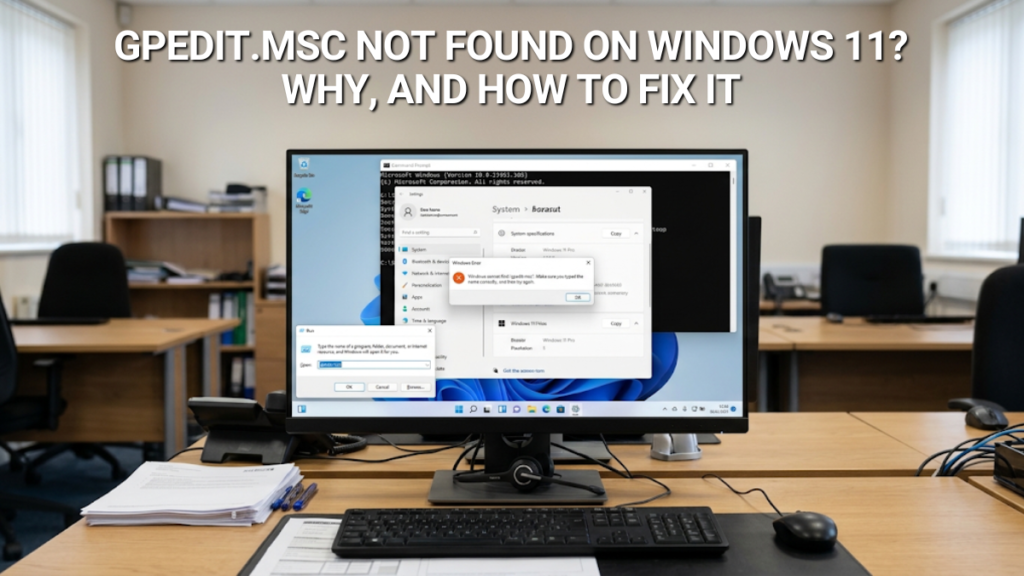
gpedit.msc, and Windows told you it can’t find it. You haven’t mistyped anything and nothing is broken. In almost every case it means your PC is running Windows 11 Home, which doesn’t include the Group Policy Editor. Here is how to confirm that, what the popular workarounds really do, what Home can manage without it, and the supported way to get the real thing.The short answer
The message reads: “Windows cannot find ‘gpedit.msc’. Make sure you typed the name correctly, and then try again.” On Windows 11 it almost always means one thing.
- Windows 11 Home doesn’t include the Local Group Policy Editor. Microsoft’s own Windows 11 edition comparison lists Group Policy for Pro and Pro for Workstations, not Home.
- The scripts that “enable gpedit on Home” aren’t supported by Microsoft, often fail, and even when the editor opens, settings may not take effect.
- The supported fix is Windows 11 Pro. It’s an edition upgrade with a product key, not a reinstall, and your files and apps stay where they are.
First, check which edition you’re on
It takes ten seconds. Open Settings → System → About and look at Edition under Windows specifications. Or press Win + R, type winver and press Enter.
If it says Windows 11 Home, that’s the whole explanation, and the rest of this guide is for you. You’ll also find that secpol.msc, the Local Security Policy console, gives the same “cannot find” error, for the same reason.
If it says Pro, Pro for Workstations, Enterprise or Education and gpedit still won’t open, something else is wrong. Sign in with an administrator account and try again. If it still can’t be found, run sfc /scannow from an administrator terminal to repair missing system files, then restart.
Why Windows 11 Home doesn’t have the Group Policy Editor
Group Policy is a management tool. It was built so IT teams could set rules across a business’s PCs: what users can change, how updates behave, which features are switched on or locked down. Microsoft treats that as a professional feature and keeps it in Pro and above, alongside domain join and Microsoft Entra ID, Remote Desktop hosting and BitLocker’s full controls.
For a Home user, the gap shows up in two ways. Some settings simply have no switch in the Settings app and exist only as policies. And some Pro features depend on Group Policy to configure them. The clearest example is a BitLocker startup PIN, which needs a single policy turned on before Windows will let you set one.
The DISM workaround: what it is, and why we don’t recommend it
Search for this error and most results offer the same fix: a short script, run as administrator, that uses Windows’ DISM tool to install two Group Policy packages. Those packages ship inside Windows 11 Home, in the system’s servicing folder, but aren’t switched on. Installing them makes the Group Policy Editor window appear.
It sounds like a neat answer. In practice there are three problems with it.
- Microsoft doesn’t offer or support it. The script circulates on forums and how-to sites, not in any Microsoft documentation. If an update changes the packages, nobody is obliged to keep it working.
- It often doesn’t work. On Microsoft’s own community forum, the person who asked about the missing editor tried the script and replied that it didn’t work for them.
- An open editor isn’t the same as working policies. Home lacks the full Group Policy infrastructure that Pro has. Independent testing has found that settings changed in a DISM-enabled editor on Home often aren’t written through to the system at all, so you can enable a policy, close the editor and see no change.
That last point is the one that catches people out. The editor looks exactly like the Pro version, so there’s no visible sign that the setting you just changed is being ignored.
Experienced users sometimes use a free, open-source editor called PolicyPlus instead, which edits policy settings directly rather than relying on the missing Group Policy components. Its own documentation is candid about the limits on Home: many policy templates are missing, some changes need a restart or sign-out, and per-user policies have no effect. It isn’t a Microsoft product, and we don’t support it. If you go that way, create a restore point first.
What you can do on Home instead
Most people open gpedit to make one specific change. Before you go further, check whether Home can already do what you’re after. For the most common reasons, it can, or it gets close enough.
| What you wanted to do | What Windows 11 Home can do | Need Pro? |
|---|---|---|
| Stop updates for a while | Settings → Windows Update → Pause updates → Pick a date. You can pause for up to 35 days, then extend again from that point. | No |
| Stop restarts while you’re working | Settings → Windows Update → Advanced options → Active hours. Set them manually or let Windows adjust them automatically. | No |
| Control when and how updates install over the longer term | Pause and active hours only. Windows Update for Business policies are Pro and above. | Yes |
| Add a PIN before Windows starts (BitLocker) | Not available. Home has automatic Device Encryption but none of BitLocker’s controls. | Yes |
| Change a setting that only exists as a policy | No supported way. Workarounds as described above. | Yes |
If everything you need is in the first two rows, you don’t need to buy anything. Microsoft documents both in its guide to managing updates and its active hours guide.
No scripts, no third-party tools, no settings that quietly don’t apply. Genuine licence, instant digital delivery and UK-based support if anything needs sorting out.
The supported fix: upgrade to Windows 11 Pro
Windows 11 Pro includes the full Local Group Policy Editor, with every policy working as documented. It also brings BitLocker with its full controls, Remote Desktop hosting, Hyper-V and the option to join a work domain. If you came here for one setting and found a list of things Home can’t do, Pro is the edition built for that.
Moving from Home to Pro doesn’t mean starting again. You enter a Pro product key in Settings, Windows switches edition, and your files, apps and settings stay put. We cover every method, and what to do if it doesn’t take first time, in how to upgrade Windows 11 Home to Pro.
If you’re setting policies across several PCs in a business, it’s worth reading Windows 11 Pro vs Enterprise before you buy. For most small businesses Pro is enough, and our guide to choosing a Windows 11 edition covers the rest.
How to open the Group Policy Editor on Windows 11 Pro
Once you’re on Pro, there are two quick ways in:
- Press Win + R, type
gpedit.mscand press Enter. - Open Start, type group policy and select Edit group policy.
The editor splits into two halves. Computer Configuration applies to the whole PC, whoever signs in. User Configuration applies per user account. Most everyday settings live under Administrative Templates in either half. Each policy has three states: Not Configured (Windows behaves as normal), Enabled and Disabled.
Many changes apply straight away. If one doesn’t, run gpupdate /force from an administrator terminal, or restart. You need an administrator account to change Computer Configuration settings.
Change one policy at a time and note what you changed. Policies override the Settings app, so a forgotten policy can make a normal setting appear greyed out months later, with a note that some settings are managed by your organisation. Setting the policy back to Not Configured undoes it.
Frequently asked questions
No. Microsoft includes the Local Group Policy Editor in Windows 11 Pro, Pro for Workstations, Enterprise and Education, but not Home. That’s why typing gpedit.msc on a Home PC returns a “Windows cannot find” error.
Almost always because the PC is running Windows 11 Home, which doesn’t include the editor. Check Settings → System → About. If you’re on Pro and still see the error, sign in as an administrator and run sfc /scannow to repair system files.
The DISM script most sites suggest isn’t supported by Microsoft and often doesn’t work. Even when the editor opens, Home lacks the full Group Policy infrastructure, so settings may not apply. If you try it, create a restore point first.
Not reliably. Independent testing has found that changes made in a DISM-enabled editor on Home often aren’t written through to the system, so the setting looks enabled but nothing changes. Windows 11 Pro is the supported way to use Group Policy.
Press Win + R, type gpedit.msc and press Enter. Or open Start, type group policy and select Edit group policy. You’ll need an administrator account to change settings that apply to the whole PC.
No. Upgrading Windows 11 Home to Pro is an edition change made by entering a Pro product key in Settings. Your files, apps and settings stay in place, and the Group Policy Editor is available once the upgrade finishes.
Typed gpedit.msc and hit a wall? Windows 11 Pro is the supported way past it: the full Group Policy Editor, no scripts and no guesswork, as a one-time purchase. If Pause updates and Active hours already cover what you needed, Home will serve you well. If not, Windows 11 Pro is — with instant digital delivery.

Gary Walsh is the Head of Tech Support at Software Supplies, with more than 20 years in the IT industry. Fully Microsoft-certified and experienced across the full business software stack — from Windows and Office to cloud infrastructure and device management — Gary delivers practical, no-nonsense advice that helps users and businesses get the most from their technology.






