
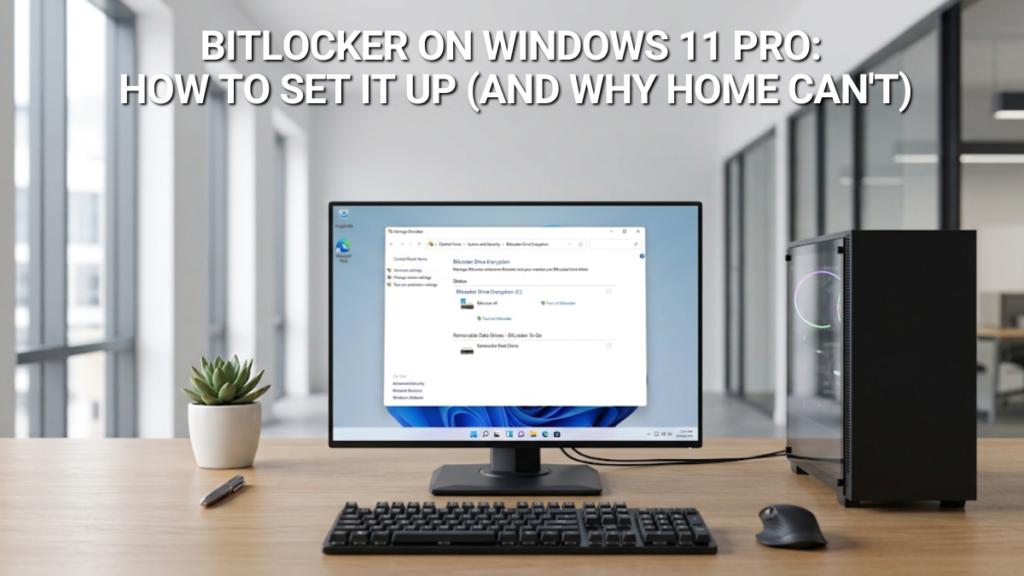
The short answer: Home vs Pro encryption
Windows 11 has two faces of the same technology. Device Encryption is the automatic version, and every edition has it on supported hardware. BitLocker Drive Encryption is the full version, with the controls, and it is only in Pro and above.
| Capability | Windows 11 Home (Device Encryption) | Windows 11 Pro (BitLocker) |
|---|---|---|
| Encrypts the Windows drive | Yes, on supported PCs | Yes |
| Encrypts other internal drives | Yes | Yes |
| Encrypts USB sticks and external drives | No | Yes (BitLocker To Go) |
| Startup PIN before Windows loads | No | Yes |
| Where the recovery key is kept | Your Microsoft account (or work or school account) | Your choice: Microsoft account, file or printout |
| Manage BitLocker control panel and Group Policy | No | Yes |
| Turn off, suspend, change how the drive unlocks | On/off switch only | Full control |
Microsoft puts the split plainly: “BitLocker Drive Encryption is only available on devices running Windows Pro, Enterprise, or Education editions. It isn’t available on Windows Home edition.” Device Encryption, on the other hand, “is available on a wider range of devices, including those running Windows Home.” Both statements are true, and you need both to understand what you have.
Check first: your drive may already be encrypted
Many people who go looking for BitLocker instructions are already encrypted and don’t know it. From Windows 11 version 24H2, Microsoft reduced the hardware requirements for automatic encryption. As a result, far more PCs now encrypt themselves during first-time setup. That covers new PCs and fresh installs, and it applies to Pro as well as Home.
There are three ways to check, from quickest to most detailed:
- Settings. Go to Settings → Privacy & security → Device encryption. If your PC shows this page, the switch tells you whether encryption is on. On Pro, BitLocker settings are also reachable from here.
- Manage BitLocker (Pro only). Type BitLocker into Start and open Manage BitLocker. Each drive is listed as on or off.
- Terminal. Right-click Start, open Terminal (Admin) and run
manage-bde -status. Look at Conversion Status (is the drive encrypted?) and Protection Status (is that encryption actually locked down?).
Automatic encryption starts during setup, but Microsoft says protection is only switched on once you sign in with a Microsoft account or a work or school account. “BitLocker automatic device encryption is not enabled with local accounts.” If Manage BitLocker says waiting for activation, or manage-bde shows protection off, the drive is encrypted but not yet protected, and nobody holds a recovery key for it.
If there is no Device encryption page at all, open System Information (type msinfo32 into Start) and find Device Encryption Support. It either says the PC meets the prerequisites or names the blocker: typically a missing TPM, Secure Boot switched off, or the Windows Recovery Environment not being set up.
If your drive is already encrypted and protected, you don’t need to set anything up. Skip to the recovery key section, because that is the part that needs your attention.
What you need before turning on BitLocker
- Windows 11 Pro (or Enterprise or Education) and an administrator account.
- A TPM chip and UEFI firmware. Windows 11 already requires TPM 2.0 and Secure Boot, so any PC that meets the Windows 11 system requirements is covered. Microsoft notes that “Devices with TPM 2.0 must have their BIOS mode configured as native UEFI only.”
- A plan for the recovery key. Decide where it will live before you start. Your Microsoft account plus one offline copy is the sensible default.
- Mains power for a laptop, and a recent backup, as you would before any change to how a drive works.
How to turn on BitLocker on Windows 11 Pro
This takes about five minutes of clicking. The encryption itself then runs in the background.
- Open Manage BitLocker. Type BitLocker into Start and select Manage BitLocker. You can also find it in Control Panel under System and Security.
- Select Turn on BitLocker next to your Windows drive (usually C:). Windows checks that the PC is suitable.
- Back up the recovery key. Windows offers to save it to your Microsoft account, save it to a file or print it. Choose the Microsoft account, then come back and save or print a second copy. A saved file must not live on the drive you are encrypting. A USB stick kept somewhere safe is ideal.
- Choose how much of the drive to encrypt. Encrypt used disk space only is right for a new PC or a freshly installed one. Encrypt entire drive is right for a PC that has been in use for a while. More on this below.
- Choose the encryption mode. Pick New encryption mode for the drive inside your PC. Compatible mode is only for drives that might be moved to a PC running an older version of Windows.
- Run the system check. Leave Run BitLocker system check ticked, select Continue and restart when asked. The check confirms Windows can read the recovery key and unlock the drive before anything is committed.
- Carry on working. After the restart, encryption proceeds in the background. Microsoft says “This can take some time to complete, but you can continue to use your device while it progresses.” Progress shows in Manage BitLocker, or as Percentage Encrypted in
manage-bde -status.
Used space only, or the entire drive?
Encrypting used space only is dramatically faster. Microsoft says it “can reduce encryption time by more than 99 percent”, and anything saved afterwards is encrypted as it is written. The trade-off is that files deleted before BitLocker was switched on may still be recoverable from the unencrypted free space. On a new PC there is nothing there to worry about. On a laptop that has held three years of client files, encrypt the whole drive and let it run overnight.
Other internal drives
A second internal drive appears under Fixed data drives in Manage BitLocker. The process is the same. When Windows offers to unlock it automatically on this PC, accept, so you are not asked for a password every time you sign in.
Home keeps its automatic encryption but has no BitLocker controls. Upgrading to Pro is a product key change, not a reinstall, and your files and apps stay where they are.
Adding a startup PIN
By default, BitLocker unlocks the drive silently using the TPM chip, as long as the PC boots normally. That protects a drive removed from the machine. It protects less against someone who has the whole laptop. A startup PIN closes that gap: Windows won’t load until the PIN is typed. Microsoft says it “must be entered each time the computer starts or resumes from hibernation.”
The PIN is switched off until a policy allows it, and that policy lives in the Group Policy Editor, which is itself a Pro-only tool. If Windows says it can’t find gpedit.msc, you’re on Home.
- Type
gpedit.mscinto Start and open it. - Go to Computer Configuration → Administrative Templates → Windows Components → BitLocker Drive Encryption → Operating System Drives.
- Open Require additional authentication at startup, set it to Enabled, set Configure TPM startup PIN to Allow startup PIN with TPM, and select OK.
- Back in Manage BitLocker, choose Change how drive is unlocked at startup and set a PIN. From Terminal (Admin),
manage-bde -protectors -add C: -tpmandpindoes the same job and prompts you for the PIN.
Change that one policy and leave the others alone. In April 2026, Microsoft’s monthly update sent some PCs with a non-standard BitLocker policy setup to the recovery screen. Custom policies are where surprises come from. One practical note: Microsoft warns that number keys don’t work before Windows loads on every keyboard, so test the PIN with a restart while you still remember it.
Encrypting a USB drive with BitLocker To Go
This is the Pro feature people forget. BitLocker To Go encrypts “USB flash drives, SD cards, External hard disk drives”, and it is the right answer for anyone who carries client files around on a stick. Plug the drive in, open Manage BitLocker, find it under Removable data drives and select Turn on BitLocker. Choose a password, back up the recovery key and let it run. On another computer, Microsoft says, the drive “can be opened by using a password or smart card.” Home’s Device Encryption does not touch removable drives at all.
Your recovery key: the part that actually matters
The recovery key is “a 48-digit number that lets you regain access to your drive” when Windows can’t unlock it on its own. Most people never need it. The ones who do usually need it at the worst possible moment, and without it the data on the drive is gone. Microsoft is blunt about this:
“Microsoft Support doesn’t have the ability to retrieve, provide, or recreate a lost BitLocker recovery key.” Neither can we, nor any retailer or repair shop. The key exists only where it was saved.
It will be in one of four places:
- Your Microsoft account: sign in at aka.ms/myrecoverykey on any device.
- A work or school account: aka.ms/aadrecoverykey, or ask your IT administrator.
- A printout filed with your other important paperwork.
- A USB stick or a saved text file on another device.
If you have more than one PC, you may have several keys. The recovery screen shows a recovery key ID, and Microsoft’s advice is to note its first eight digits and match them against the saved keys.
Why this matters in practice. Recovery prompts are not only for stolen laptops. In April 2026, Microsoft confirmed that its monthly update (KB5083769) asked some PCs with that non-standard policy setup for their recovery key on the first restart. Microsoft issued a fix for Windows 11 25H2 in May. Separately, Microsoft’s Secure Boot guidance notes that some devices enter recovery once after the Secure Boot certificate update, then boot normally. Our Secure Boot certificate explainer covers that change. Firmware and BIOS updates can also trigger a prompt. Most manufacturers’ update tools suspend BitLocker for you. If yours doesn’t, choose Suspend protection in Manage BitLocker before updating.
The habit that saves the day is simple: open aka.ms/myrecoverykey now, while nothing is wrong, and confirm a key is listed for this PC. If none is, Manage BitLocker’s Back up your recovery key option lets you save one.
Why Home can’t, and whether that matters to you
On a Home PC that meets the prerequisites and signs in with a Microsoft account, Device Encryption switches on and the recovery key is “attached to that account”. For a family desktop that never leaves the house, that is solid protection, and there is no need to pay for more. If your Home PC has a Device encryption page, make sure the switch is on.
What Home cannot give you is control. There is no startup PIN, no encryption for USB drives, no choice about where the recovery key goes and no way to manage any of it by policy. And encryption only happens at all if the hardware qualifies and you use a Microsoft account.
Device Encryption covers you
- A desktop that stays at home
- You sign in with a Microsoft account
- The Device encryption switch is on
- No client or business data on USB drives
You need BitLocker’s controls
- A laptop that travels, or holds business data
- You want a PIN before Windows loads
- You carry files on USB sticks or external drives
- You use a local account, or want the key kept offline
If you land in the right-hand column, moving from Home to Pro is a key change, not a reinstall. Our guide to upgrading Windows 11 Home to Pro walks through it, and Windows 11 Home vs Pro covers the rest of what changes. After the upgrade, Manage BitLocker appears and any existing Device Encryption carries on.
Does BitLocker slow your PC down?
Not in any way you are likely to notice. Microsoft’s own figure is “a small performance overhead, often in single-digit percentages”, and most of that shows up only in storage benchmarks.
That overhead is shrinking. In December 2025 Microsoft introduced hardware-accelerated BitLocker, which hands the encryption work to dedicated circuitry in the processor instead of the main CPU cores. It needs an NVMe drive and one of the newest processors that support it, so few PCs have it yet. Microsoft reports roughly 70% fewer CPU cycles per disk operation on those machines. To see which kind you have, run manage-bde -status: supported PCs show Hardware accelerated under Encryption Method.
For a business rolling BitLocker out across several machines, it belongs on the standard build checklist. Our guide to deploying Windows 11 across multiple PCs shows where it fits, and Windows 11 for small businesses covers the wider setup.
Frequently asked questions
Not the full version. Windows 11 Home has Device Encryption, which uses BitLocker technology to encrypt the drive automatically on supported PCs when you sign in with a Microsoft account. It has none of BitLocker’s controls: no startup PIN, no USB drive encryption and no Manage BitLocker panel.
Check Settings → Privacy & security → Device encryption, or open Manage BitLocker on Pro. For detail, run manage-bde -status in an administrator Terminal. Conversion Status shows whether the drive is encrypted, and Protection Status shows whether that encryption is active.
Device Encryption is BitLocker switched on automatically, with the key saved to your Microsoft or work account and no settings to change. It is on every edition, on supported hardware. BitLocker Drive Encryption, in Pro and above, adds control: PINs, USB drive encryption, key backup choices and Group Policy.
Usually in your Microsoft account at aka.ms/myrecoverykey. Work and school devices use aka.ms/aadrecoverykey or your IT department. Otherwise, look for a printout or a saved file on a USB stick. Match the first eight digits of the recovery key ID shown on screen.
No. Microsoft states that its support team cannot retrieve, provide or recreate a lost recovery key, and no retailer can either. If the key was never saved anywhere, the data on the encrypted drive cannot be recovered. Check that your key is saved before you need it.
Only slightly. Microsoft puts the overhead at single-digit percentages in typical use. Newer PCs that support hardware-accelerated BitLocker, introduced in December 2025, move the work off the main processor cores and reduce it further.
Yes. Encryption runs in the background and the PC stays usable throughout. Encrypting used space only finishes quickly. Encrypting an entire, well-used drive can take hours, so a laptop should stay plugged in.
Used space only for a new or freshly installed PC, where Microsoft says it can cut encryption time by more than 99%. Entire drive for a PC that has been in use, because previously deleted files can otherwise remain readable in the unencrypted free space.
BitLocker itself can work without one, using a startup key on a USB drive, but it has to be allowed by policy first. In practice the question rarely arises on Windows 11, which already requires a TPM 2.0 chip on supported PCs.

Gary Walsh is the Head of Tech Support at Software Supplies, with more than 20 years in the IT industry. Fully Microsoft-certified and experienced across the full business software stack — from Windows and Office to cloud infrastructure and device management — Gary delivers practical, no-nonsense advice that helps users and businesses get the most from their technology.






