
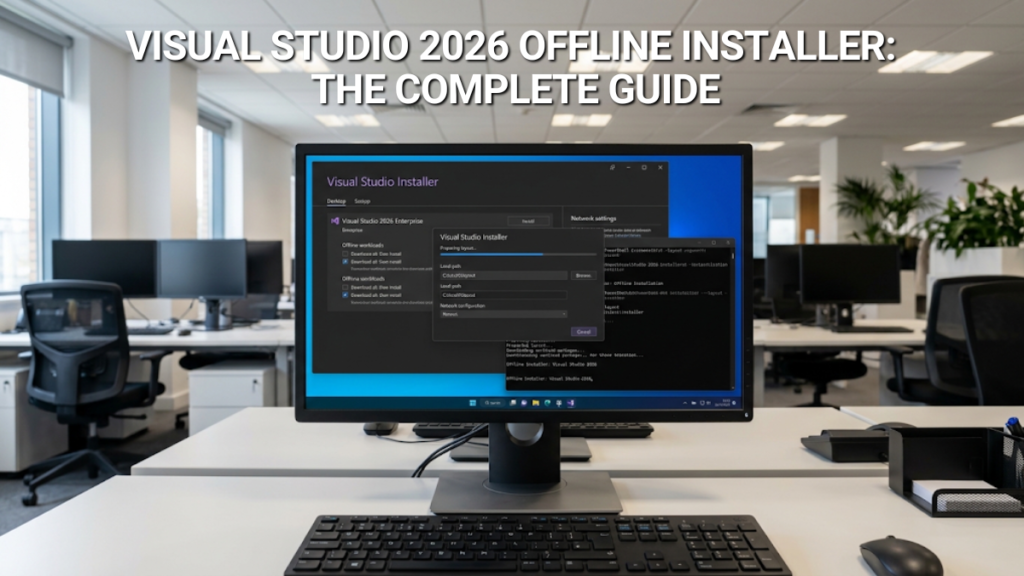
- Download the bootstrapper for your edition and run it with
--layouton a connected PC. - Copy the layout to the offline machine, at a path under 80 characters that it will keep.
- Install the certificates from the layout’s
Certificatesfolder. - Install with the layout’s own bootstrapper and
--noWeb. - License it with a product key, not a sign-in. A signed-in licence goes stale without internet, and the trial can only be extended by signing in.
If you qualify for Community, you need nothing further, though it has to be updated within 180 days. A Visual Studio subscription works by signing in, and that sign-in goes stale on a machine that stays offline. For Professional on an offline PC, Microsoft recommends a product key: a one-time purchase, with no account to keep signed in.
Is there a Visual Studio 2026 ISO?
No. Microsoft distributes Visual Studio 2026 as a small bootstrapper, and its offline installation documentation describes two ways of getting the packages down before you disconnect. Neither involves a disc image, and download pages offering one are either repackaging Microsoft’s files or linking straight back to the bootstrapper.
| You want to… | Use | Reusable on other PCs? |
|---|---|---|
| Install on this PC, then go offline | Download all, then install in the Visual Studio Installer | No — Microsoft says not to transfer it |
| Install on other or offline PCs, or keep a copy for later | A layout, built with --layout |
Yes |
The first option lives in the dropdown at the bottom of the Installer’s Workloads tab. It is the right choice if you simply have a poor connection and want the download finished before you start. Everything else in this guide is about the second.
Before you start
Pick the right bootstrapper, and the right channel
A layout is built by the bootstrapper for the edition you intend to install, and Microsoft requires one layout per edition. For Visual Studio 2026 the current bootstrappers are:
- Professional:
https://aka.ms/vs/stable/vs_professional.exe - Enterprise:
https://aka.ms/vs/stable/vs_enterprise.exe - Community:
https://aka.ms/vs/stable/vs_community.exe - Build Tools:
https://aka.ms/vs/stable/vs_buildtools.exe
Those links always fetch the latest release on the Stable channel. Many older guides still give the Visual Studio 2022 links ending /vs/17/release/, which build a 2022 layout instead. If you need a specific version, the Visual Studio 2026 release history has a fixed bootstrapper for every release, and you can check what any bootstrapper will install under Properties → Details → Product version.
The channel matters more on an offline machine than a connected one. Visual Studio 2026 has three, set out in Microsoft’s servicing policy:
- Stable — the supported default, for every edition.
- Insiders — early features, provided as-is. Not something to freeze onto an offline machine.
- Long-Term Servicing Channel (LTSC) — Professional, Enterprise and Build Tools only. The first, the 2026-LTSC, is expected on 10 November 2026 and is supported until 9 November 2027. It suits teams that want to standardise on one version and take security fixes only.
Community users should note one rule before building an offline machine around it: Microsoft requires the Community edition to be updated to the latest release within 180 days to keep using it. A PC that never sees a layout update will eventually fall foul of that. Microsoft’s policy sets that rule for Community, not for Professional, which can also sit on the LTSC and be unlocked with a product key, so it is the better fit for a machine you intend to leave alone. If you qualify for Community and can carry a fresh layout across every few months, it will do the job. We cover who qualifies in Is Visual Studio 2026 free?
Disk space, and the 80-character rule
Microsoft quotes two slightly different figures for a complete layout. Its offline installation page says at least 45 GB; its network layout page puts a full single-language layout at about 40 GB for Community and 50 GB for Enterprise, plus roughly half a gigabyte for each extra language. Plan for 40–50 GB if you download everything, and more over time, because layout updates take space too. A layout limited to the workloads you use is far smaller.
Keep the layout path under 80 characters. Microsoft states the limit for both the layout folder and the installation path, and a long path is a quiet cause of failed builds. C:\VSLayout is fine. That figure is download size, not installed size — for what Visual Studio needs once installed, see our Visual Studio 2026 system requirements.
How to create a Visual Studio 2026 offline layout
Building the layout needs an internet connection; installing from it does not. Do this on any connected Windows PC:
- Download the bootstrapper for your edition from the links above and put it in a short folder, such as
C:\VS. - Open Command Prompt as administrator and change to that folder.
- Run one of the commands below, then leave it alone. A full layout takes a long time.
The commands follow Microsoft’s own examples, shown here with the Professional bootstrapper. Swap the filename for your edition.
| What you get | Command |
|---|---|
| Everything, every language | vs_professional.exe --layout C:\VSLayout |
| Everything, English only | vs_professional.exe --layout C:\VSLayout --lang en-US |
| .NET desktop and web workloads only, English | vs_professional.exe --layout C:\VSLayout --add Microsoft.VisualStudio.Workload.ManagedDesktop --add Microsoft.VisualStudio.Workload.NetWeb --lang en-US |
| C++ desktop with recommended and optional components | vs_professional.exe --layout C:\VSLayout --add Microsoft.VisualStudio.Workload.NativeDesktop --includeRecommended --includeOptional --lang en-US |
| Exactly what an existing machine has | vs_professional.exe --layout C:\VSLayout --config "C:\myconfig.vsconfig" |
One rule governs all of these, and it is the one that catches people out: if you use --add, only those workloads and components (and their dependencies) are downloaded. Leave --add out and you get everything. --includeRecommended adds a workload’s recommended components; --includeOptional adds both recommended and optional ones.
The --config route is the tidiest way to mirror a machine you already have. In the Visual Studio Installer on that machine, choose More → Export configuration on the product card, save the .vsconfig file, and point the layout command at it using the full path, as Microsoft recommends in its configuration guide.
Installing Visual Studio 2026 from the layout
Copy the layout folder to the target machine, or to a network share it can reach, then run the bootstrapper that sits inside the layout. Use the same workloads you built with, and add --noWeb:
--noWeb tells setup never to go online. Without it, the installer tries the internet for anything it cannot find in the layout, which on an offline machine looks like a hang. With it, a component that is missing from the layout makes setup fail cleanly instead — and the fix is to add that component to the layout with --add and copy it across again. Microsoft’s deployment guide also notes that --noWeb often clears the error “A product matching the following parameters can’t be found”. If you script the install, add --wait so the exit code reflects the finished installation rather than the moment the bootstrapper handed over.
The installer records where the layout was in C:\ProgramData\Microsoft\VisualStudio\Packages\_Instances\<InstanceID>\state.json, and future updates and modifications expect to find it there. Install from the path where the layout will live permanently. Renaming or moving the folder later is one of the commonest reasons an offline Visual Studio refuses to modify or update.
Install the certificates on offline machines
Visual Studio setup checks the Authenticode signature of every package before it installs it, and that needs current Microsoft root certificates. A connected PC refreshes them on its own. An offline one, or one that has missed months of Windows Update, does not — and the usual symptom is an installer that opens, sits on its first screen and closes without explanation.
The layout includes the certificates you need in its Certificates folder. Right-click each .cer file, choose Install Certificate and follow the wizard, leaving the password blank if asked. To do it from an elevated command prompt instead, as set out in Microsoft’s certificate guide:
The same Microsoft page links the Microsoft Windows Code Signing PCA 2024 certificate for keeping offline machines current. In a Visual Studio 2026 case on Microsoft Q&A, an installer that closed on its first screen was fixed by installing exactly that certificate, so it is worth adding to any offline build kit.
What you will see the first time it opens
The install is not quite the end of the job. Professional and Enterprise open in a 30-day trial, and the one-off extension to 90 days only happens if you sign in, which an offline machine cannot do. Community may ask you to sign in within 30 days of installation; Microsoft says the prompt does not stop you using it, but the 180-day update rule above still applies. For Professional or Enterprise, unlock it with a product key before the machine leaves the network for good, or as soon as you are at the keyboard. The next section shows how.
Licensing Visual Studio on a machine that is never online
This is the part almost every offline guide leaves out, and it decides whether the machine is still usable in three months. Visual Studio can be licensed two ways: by signing in with an account that holds a subscription, or with a product key. Microsoft is clear about which one suits an offline machine:
“If you use Visual Studio for extended periods in environments that have limited or no internet access, you should use a product key to unlock Visual Studio to avoid interruption.”
The reason is the licence token. Microsoft’s unlock documentation explains that a signed-in licence goes stale if Visual Studio has not connected to the internet for an extended period, and once it expires you have to sign in again before you can carry on. The trial is no help either: Professional and Enterprise run for 30 days, and the one-off extension to 90 days needs you to sign in.
If you do not have a key yet, a Visual Studio 2026 Professional licence key is a one-time purchase, delivered by email. Entering it by hand works as it does on any machine: File → Account Settings → License with a Product Key. Our guide to buying and activating Visual Studio 2026 Professional walks through it screen by screen.
Applying a key across several machines
If you are installing from a layout onto more than one PC, Microsoft ships a small utility, StorePID.exe, that applies a product key silently from an elevated command prompt. It installs with Visual Studio, in the Common7\IDE folder, and takes the key (with its dashes) followed by the edition’s Microsoft Product Code. For Visual Studio Professional 2026 the code is 09862 (Enterprise is 09860):
A return code of 0 means the key was applied. Microsoft lists the others, including 2 for an invalid key and 4 for a key already in use. Each machine needs its own licence, and a single key covers one PC, so order one key per machine you are building.
If a key you bought from us will not activate on an offline machine, get in touch with our UK support team before trying anything else. Activation messages are often less final than they look, and we would rather diagnose it with you than have you guess.
A genuine Microsoft product key, the licensing route Microsoft recommends for machines with little or no internet access. Instant email delivery, no subscription to keep signed in, and UK-based help with activation.
The same question comes up with Office on offline PCs; our guide to activating Office without internet covers that side.
Keeping your layout up to date
A layout is a snapshot. To bring it up to date, run the bootstrapper against the same folder again from a connected machine, then copy the result to wherever your offline PCs install from. Microsoft suggests doing it on Patch Tuesday, the second Tuesday of the month, when Visual Studio security updates usually land, and downloading into a separate local folder first if your layout lives on a busy network share.
| To… | Run |
|---|---|
| Update the layout to the latest release | vs_professional.exe --layout C:\VSLayout |
| Add a workload or language | vs_professional.exe --layout C:\VSLayout --add Microsoft.VisualStudio.Workload.Azure --lang de-DE |
| Check for missing or corrupt files | vs_professional.exe --layout C:\VSLayout --verify |
| Re-download anything missing or corrupt (needs internet) | vs_professional.exe --layout C:\VSLayout --fix |
| Remove superseded packages | --clean with the path to an old Catalog.json in the layout’s Archive folder |
Two warnings from Microsoft’s command-line reference are worth knowing. You can add to a layout but you cannot reliably remove components from it, so start smaller rather than larger. And if an older guide tells you to add --useLatestInstaller, ignore it: it only applies to bootstrappers from before April 2023.
When an offline install fails
Most offline failures come down to a handful of causes. Work through this before assuming the layout is broken.
| Symptom | Likely cause | Fix |
|---|---|---|
| Installer opens, then closes on its first screen | Missing or out-of-date certificates | Install the layout’s certificates and the PCA 2024 certificate |
| Setup hangs or tries to go online | --noWeb not used |
Run the layout’s bootstrapper again with --noWeb |
| “A product matching the following parameters can’t be found” | Missing --noWeb, or the wrong edition’s bootstrapper |
Add --noWeb; use the bootstrapper inside the layout |
Setup fails partway with --noWeb |
A selected component is not in the layout | Add it to the layout with --add and copy it across again |
| Updates or modifications fail later | The layout was moved or renamed | Put it back at its original path |
| Layout build errors or corrupt packages | Path over 80 characters, or an interrupted download | Use a shorter path; run --verify, then --fix |
| Visual Studio asks you to sign in, or says the licence is stale | A trial or signed-in licence that cannot refresh offline | Unlock it with a product key |
| The Installer itself will not start or update | A damaged Installer | Reset it, as covered in our uninstall and reinstall guide |
One issue does not have a clean fix yet. In an open Microsoft Q&A thread, a Visual Studio 2026 installation from a layout on a fully air-gapped machine showed a “newer version available” prompt that closed the IDE when dismissed, and Microsoft’s suggested change did not resolve it. If you are standardising a fully offline estate on one version, install it on a single test machine and use it for a few days before rolling it out.
Finally, build your layout from Microsoft’s own bootstrapper rather than downloading someone else’s “offline package”. Setup checks Microsoft’s signatures precisely so that you can trust what it installs; a 50 GB archive from an unknown site defeats the point.
Frequently asked questions
No. Microsoft supplies Visual Studio 2026 as a bootstrapper, not a disc image. To install offline you either use Download all, then install in the Installer on the same PC, or build a layout with the –layout command that you can copy to other machines.
A complete layout in one language is roughly 40 to 50 GB depending on edition, by Microsoft’s figures, with about half a gigabyte for each extra language. A layout limited to the workloads you use with –add is much smaller, and updates add to the total over time.
No. Microsoft requires a separate layout for each edition, built with that edition’s bootstrapper. A Professional layout installs Professional; for Community you need a second layout built with vs_community.exe.
Yes — that is what a layout is for. Copy the whole folder, keep the path under 80 characters, and install from the location where it will stay, because updates expect the layout at the same path. The Download all, then install option is different and should not be transferred.
Microsoft recommends a product key for machines with limited or no internet, because a signed-in licence goes stale without a connection. Enter the key under File, Account Settings, License with a Product Key, or apply it with StorePID.exe. If a key from us will not activate, contact our support team.
Professional or Enterprise, for most offline setups. Both can be unlocked with a product key, which Microsoft recommends for machines with little or no internet, and both can use the Long-Term Servicing Channel. Community has to be updated within 180 days to keep working, so it suits offline use only if you can carry layout updates across regularly.
Only if you keep it updated. Microsoft requires the Community edition to be updated to the latest release within 180 days to continue using it, so an offline Community install needs regular layout updates carried across to it.
Update the layout on a connected PC by running the bootstrapper with –layout against the same folder, copy the updated layout back to its original path, then update Visual Studio from it. Microsoft suggests doing this on Patch Tuesday each month.
It stops Visual Studio setup from downloading anything, so it installs only from the layout. If a component you select is not in the layout, setup fails rather than trying the internet. It is the switch to use on any offline install.
Licensing the machine you have just built
If the offline PC you are setting up needs a Visual Studio licence, a product key is the option Microsoft points to for exactly this situation: no account to keep signed in, and no token to go stale. A genuine perpetual key from us is a one-time purchase, delivered by email, with someone in the UK to talk to if activation does not go to plan.

Gary Walsh is the Head of Tech Support at Software Supplies, with more than 20 years in the IT industry. Fully Microsoft-certified and experienced across the full business software stack — from Windows and Office to cloud infrastructure and device management — Gary delivers practical, no-nonsense advice that helps users and businesses get the most from their technology.






