
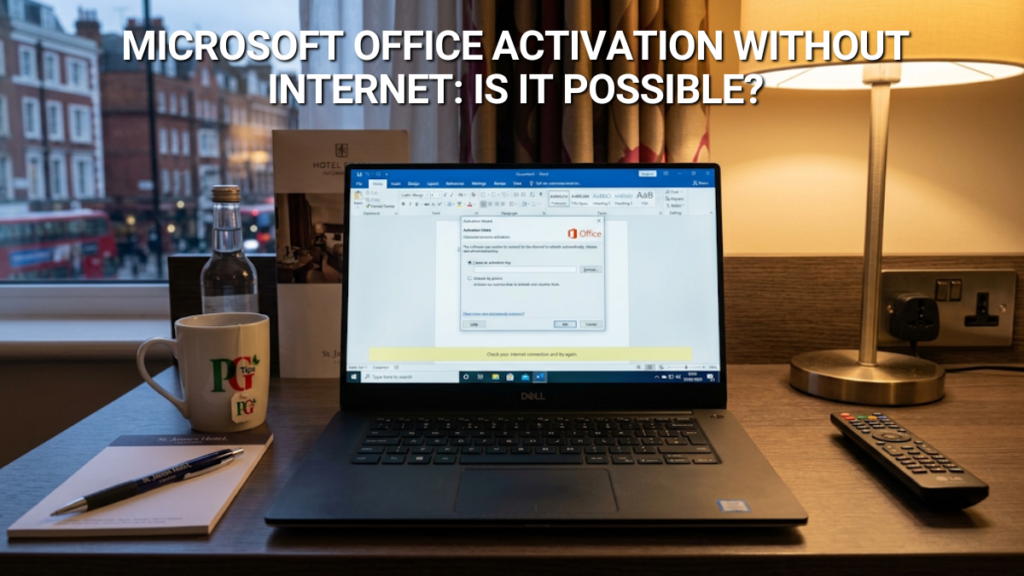
Can you activate Office without internet?
| What you have | Can the PC activate offline? | How |
|---|---|---|
| Office Home & Business 2024 (retail) | No | Internet and a Microsoft account needed once, then never again |
| Office LTSC Professional Plus 2024 (volume) | Yes | Installation ID from the PC → Microsoft’s activation portal on any other device → Confirmation ID back |
| Office on a business network with a KMS host | Yes | Activates against the KMS host over the local network — no internet at any point |
| Any Office, already activated | Yes | Runs offline indefinitely |
The distinction that matters is not whether the PC needs an internet connection — often it does not — but whether you need one. Somewhere in the process, on some device, a connection is required. What no longer exists is the phone call.
What changed in December 2025
For roughly twenty years, activating a Microsoft product on a disconnected machine meant picking up the phone. You rang an automated line, read out a very long Installation ID, and typed in an even longer Confirmation ID. It was tedious, and it worked anywhere with a telephone.
That route is gone. Microsoft’s documentation states it plainly: “Beginning December 3, 2025, the traditional telephone-based product activation automation process has been moved from telephone to online.” The replacement is the Product Activation portal at visualsupport.microsoft.com.
Microsoft is explicit that this was a change of venue, not a withdrawal: “While the process has been updated, offline activation capabilities remain supported. Customers who rely on traditional offline activation can continue using it without changes to their environment.” The portal “supports both connected and non-connected devices”.
So the mechanism is unchanged — Installation ID out of the offline PC, Confirmation ID back in. Only the place you type the numbers has moved, from a keypad to a browser. This matters because a lot of people have heard that phone activation died and concluded that offline activation died with it. It did not.
One practical consequence worth knowing before you start: the portal requires you to complete a CAPTCHA and sign in with a Microsoft, work, school or Entra ID account. Microsoft notes that signing in “will not associate the account to the product license” — it is only there to control access to the portal. You will need a device that can handle a sign-in, which in practice means a phone or a second computer rather than anything on the offline machine.
If you bought retail Office
This is the straightforward case, and the answer is no — with a caveat that makes it far less of a problem than it sounds.
Office Home & Business 2024 and the other retail editions activate through office.com/setup, which redeems your product key against a Microsoft account. There is no Installation ID, no portal route and no phone route. Microsoft’s own requirements page puts it as clearly as anyone could: “Internet access is required to install and activate Office, but not to use Office apps such as Word, Excel and PowerPoint once you have these fully installed on your computer.” The same page confirms a Microsoft account is required: you must be signed in with it to install and manage the software.
The word doing the work there is once. You need a connection to redeem the key, download the installer and let Office check in. After that the machine can go offline permanently and Word, Excel, PowerPoint and Outlook carry on working. For a workshop PC, a studio machine or a laptop that lives somewhere with no signal, the usual answer is to get it online just long enough — tethering to a phone for twenty minutes is normally enough — and then disconnect it for good. Our step-by-step guide to activating Office 2024 covers that process in full.
If you bought volume-licensed Office
Office LTSC Professional Plus 2024 works differently, and it is the edition that can genuinely be installed and activated on a machine that never touches a network. Two separate jobs are involved, and most guides confuse them: getting Office onto the PC, and getting it activated.
Installing it offline
The Office Deployment Tool separates the download from the install. On a computer that does have internet, you run the tool in download mode, which pulls the full installation files into a local folder:
setup.exe /download downloadconfig.xmlCopy that folder to a USB stick, take it to the offline machine, and install from it by pointing the SourcePath attribute in your configuration file at the copied folder:
Nothing is downloaded at that point — the installer reads everything from the stick. Our guide to installing Professional Plus 2024 with the Office Deployment Tool covers the configuration file in detail, including where the product key goes; this article assumes you have been through that and are now facing a machine with Office installed and nothing to activate against.
Activating it offline
Volume editions of Office include a licensing script called ospp.vbs, and it has two options built specifically for this situation. Microsoft documents them for Office LTSC 2024: /dinstid displays the Installation ID for offline activation, and /actcid completes the activation with a Confirmation ID you supply.
The round trip goes like this.
- On the offline PC, open Command Prompt as an administrator and ask Office for its Installation ID:
cscript ospp.vbs /dinstid
Run this from the folder
ospp.vbslives in. Microsoft documents the location asProgram Files\Microsoft Office\root\Office16, orProgram Files (x86)\Microsoft Office\root\Office16for 32-bit Office on 64-bit Windows. Some installs place it directly inOffice16without therootfolder, so if the first path fails, check both. - Write the Installation ID down. It is long, it is numeric, and a single wrong digit means starting again.
- On any device with an internet connection — a phone will do — go to Microsoft’s Product Activation portal, sign in, and enter the Installation ID. The portal returns a Confirmation ID.
- Back on the offline PC, complete the activation: cscript ospp.vbs /actcid:<confirmation ID>
- Check it worked:
cscript ospp.vbs /dstatus
You are looking for
LICENSE STATUS: ---LICENSED---in the output.
Microsoft’s guidance on this route is currently inconsistent in places — the portal documentation confirms offline activation remains supported for non-connected devices, while some older Microsoft support content still points at a telephone number that no longer performs automated activation. If you are planning around a machine that genuinely cannot be connected, test the round trip on a machine you can before committing to it.
If you are doing this across a fleet rather than a single PC, Microsoft’s Volume Activation Management Tool handles proxy activation, where one connected computer processes activation requests on behalf of the others. It needs the offline machines to be reachable on a network, which rules it out for a truly standalone PC.
Retail Office needs a connection and a Microsoft account. The volume edition gives you the Installation ID and Confirmation ID method described above — a genuine one-time purchase, supported by Microsoft until October 2029.
The same ospp.vbs method applies to the other volume-licensed Microsoft applications, so if you are working through this for Project 2024 or Visio 2024, the process is identical.
KMS: the only route that needs no internet at all
There is one method where nothing in the chain touches the internet, and it is worth explaining mainly so you can rule it out quickly. Key Management Service activation is designed for organisations, and it needs three things you either have or you do not: a volume licensing agreement, a KMS host set up on your network, and enough machines to make it work.
Clients find the KMS host through a DNS record on the local network and activate against it — no connection to Microsoft required at the moment of activation. Microsoft’s documented behaviour is worth knowing if you are running one: the KMS host needs a minimum of five activation requests before it will activate anything, clients renew once every seven days by default, a successful activation lasts 180 days, and a client that fails to renew spends 30 days in an out-of-tolerance state before dropping to unlicensed notifications.
That five-machine threshold is the part that decides it for most people. If you are reading this about one laptop in a workshop, KMS is not your answer, and there is no home-user version of it.
Searches around offline activation turn up a great deal of software promising to activate Office without a licence — scripts, emulators, “activators”. None of it is legitimate, all of it involves running unknown code with administrator rights on your machine, and none of it is covered here. There is no lawful way to activate Office without a licence for it. Everything on this page assumes you have bought one.
What happens if you never activate it
Office installs and runs for a limited period unactivated, then falls back to a restricted state: a persistent banner across the top of every app, and editing and saving disabled. You can still open documents and read them, which is enough to recover files but not enough to work.
It is not a workable long-term position, and it is worth saying that the offline routes above exist precisely so it does not have to be. If you have already hit that state and are seeing an error rather than a clean activation, our guide to Office activation error codes and what they mean deals with the specific failures, including the proxy and firewall problems that often masquerade as “no internet”. And if this machine is a rebuild rather than a new install, reactivating an existing licence after a Windows reinstall is a separate and usually simpler process.
Frequently asked questions
On the PC itself, yes — if you have a volume-licensed edition such as Office LTSC Professional Plus 2024. You take an Installation ID off the offline machine, enter it at Microsoft’s activation portal from any connected device, and bring a Confirmation ID back. Retail Office has no equivalent route.
No. Microsoft moved the automated telephone activation process online on 3 December 2025. Offline activation itself is still supported, but the Installation ID and Confirmation ID exchange now happens through Microsoft’s Product Activation portal rather than over the phone.
No. Microsoft states that internet access is required to install and activate Office, but not to use the apps once they are fully installed. An activated copy of Word or Excel works indefinitely on a machine that never goes online again.
Yes, for volume editions. The Office Deployment Tool downloads the installation files on a connected computer, and you then install from that folder or a USB stick on the offline machine. Installing and activating are separate steps, and only the install can be done entirely from local files.
It is a long numeric code identifying your specific installation, used to obtain a matching Confirmation ID. On volume editions of Office you get it by running cscript ospp.vbs /dinstid from the Office program folder in an administrator Command Prompt.
For retail editions, yes — Microsoft requires you to sign in with a Microsoft account to install and manage the software. Volume editions do not tie the licence to an account, though the activation portal itself requires a sign-in to access it.
Yes, with a volume-licensed edition. The offline machine never connects — you carry the Installation ID to a connected device and carry the Confirmation ID back. On a business network with a KMS host, the client activates over the local network with no internet involved at all.
A one-time purchase activated with a product key does not. KMS activation is different: it lasts 180 days and clients renew every seven days, so a KMS machine kept off the network long enough will eventually fall out of tolerance and need to see the KMS host again.

Gary Walsh is the Head of Tech Support at Software Supplies, with more than 20 years in the IT industry. Fully Microsoft-certified and experienced across the full business software stack — from Windows and Office to cloud infrastructure and device management — Gary delivers practical, no-nonsense advice that helps users and businesses get the most from their technology.






